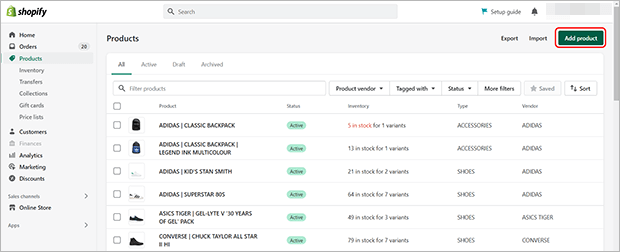
To add digital products to Shopify, go to your dashboard and select “Add Product.” Fill in the product details, upload the digital file, and set the product as a digital download.
Digital products are a great way to expand your Shopify store offerings. They include items like eBooks, music, software, or online courses. Adding digital products can increase your revenue without the hassles of inventory management or shipping. This process is simple and straightforward, making it easy for any store owner to implement.
Digital products can also attract a different customer base, widening your market reach. By following a few steps, you can quickly diversify your Shopify store and boost sales.
Setting Up Your Shopify Account
Adding digital products to Shopify starts with a solid foundation. The first step is to set up your Shopify account. This process involves creating a Shopify account and selecting the right plan that meets your business needs.
Creating A Shopify Account
Begin by visiting the Shopify website. Click on the “Start free trial” button. Enter your email address, create a password, and choose a store name. Shopify will guide you through the setup process. You will need to provide some basic information about your store and yourself.
Here is a simple step-by-step guide:
- Go to the Shopify website.
- Click on “Start free trial”.
- Enter your email, password, and store name.
- Follow the prompts to complete the setup.
Choosing The Right Plan
Shopify offers several plans, each with different features. Choosing the right plan is crucial for your business. Here is a quick comparison of the available plans:
| Plan | Monthly Cost | Features |
|---|---|---|
| Basic | $29 | All core features, 2 staff accounts |
| Shopify | $79 | All core features, 5 staff accounts, professional reports |
| Advanced | $299 | All core features, 15 staff accounts, advanced report builder |
Consider the size and needs of your business before making a decision. If you are just starting, the Basic plan may be sufficient. For more established businesses, the Shopify or Advanced plans offer additional features.
Credit: trustpulse.com
Adding Digital Products
Adding digital products to your Shopify store can be a game-changer. Digital products are easy to manage and have no shipping costs. Here’s how to set them up.
Understanding Digital Products
Digital products are items sold online without physical form. Examples include e-books, software, and music files. These products can be downloaded after purchase.
Preparing Your Digital Files
Before uploading, make sure your digital files are ready. This includes checking file formats and sizes. Use common formats like PDF, MP3, or ZIP.
- Ensure files are virus-free.
- Compress large files to ZIP format.
- Label files clearly for easy identification.
Organize your files in folders. This helps in quick access during the upload process.
| File Type | Common Formats |
|---|---|
| E-books | PDF, EPUB |
| Music | MP3, WAV |
| Software | EXE, ZIP |
Ready your files to ensure smooth uploading. Now, let’s add them to Shopify.
Configuring Product Details
Configuring product details is essential for selling digital products on Shopify. This involves entering product information and setting up pricing. Doing this correctly ensures customers have all the information they need to make a purchase.
Entering Product Information
Start by logging into your Shopify admin panel. Navigate to the Products section and click Add product.
Fill in the Title field with the product name. Make sure it is clear and descriptive. Next, add a detailed description in the Description field. Use bullet points to highlight key features:
- Instant download after purchase
- High-quality digital files
- Compatible with various devices
Upload a cover image or screenshot that represents the product. This image should be high-quality and visually appealing.
Under Product Type, select “Digital”. This helps categorize your product for easier management.
Setting Up Pricing
Set a price that reflects the value of your digital product. Enter the price in the Price field. If you want to offer a discount, use the Compare at price field.
Consider offering a limited-time discount to encourage purchases. This can be set up in the Discounts section.
If your product is subject to taxes, check the Charge taxes on this product box.
Once all fields are filled, click Save to finalize your settings. Your digital product is now ready for sale on Shopify.

Credit: m.youtube.com
Uploading Digital Files
Uploading digital files to Shopify is a straightforward process. This section will guide you through the steps needed to upload your digital products. Using Shopify’s Digital Downloads App and linking the files are essential steps.
Using Shopify’s Digital Downloads App
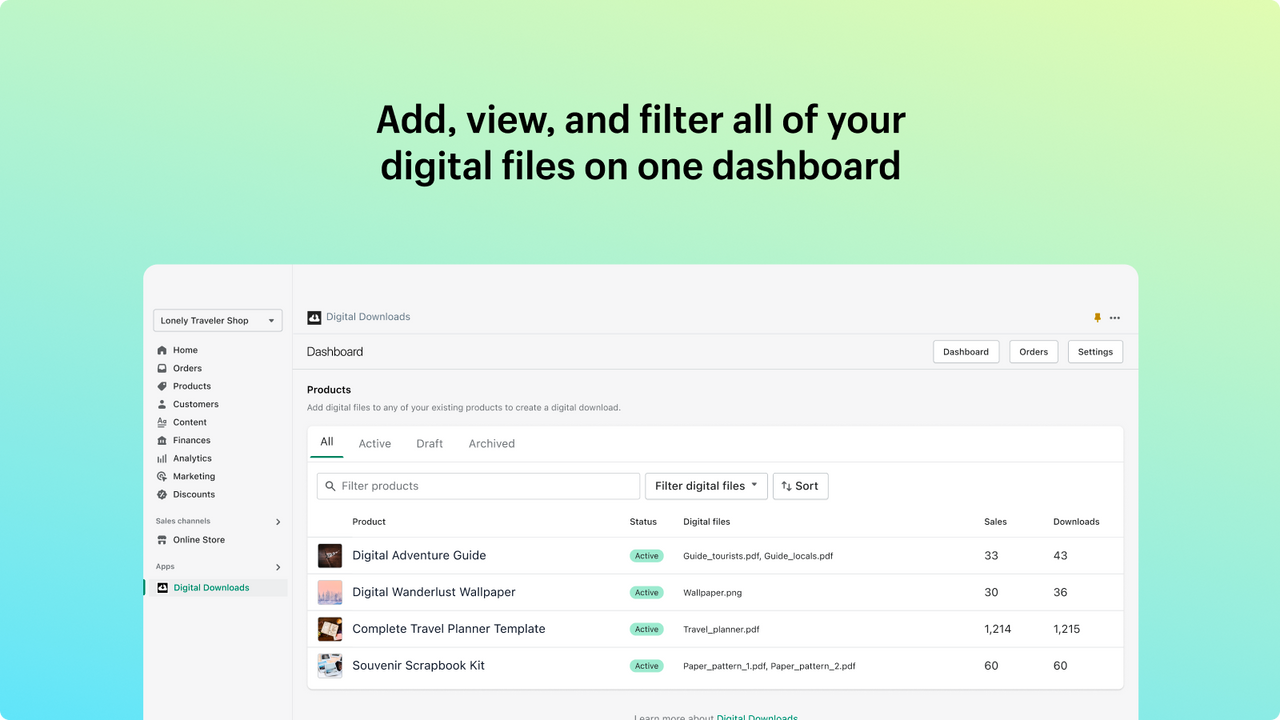
First, install the Digital Downloads App from the Shopify App Store. This app helps you manage and deliver digital files. Follow these steps:
- Go to the Shopify App Store.
- Search for “Digital Downloads.”
- Click on the app and select “Add app.”
- Follow the on-screen instructions to install the app.
Once the app is installed, you can start uploading your digital files.
Uploading And Linking Files
Now, upload your digital files using the Digital Downloads App. Follow these steps:
- Open the Digital Downloads App from your Shopify admin panel.
- Click on “Add a new product.”
- Fill in the product details like title, description, and price.
- Scroll down to the “Digital Files” section.
- Click on “Upload file” and choose your file.
- Click “Save” to upload and link your digital file.
You can also link files to existing products. Follow these steps:
- Navigate to an existing product in your Shopify admin panel.
- Scroll down to the “Digital Files” section.
- Click on “Add file” and upload your file.
- Click “Save” to link the file to your product.
Ensure your files are in a suitable format. Common formats include PDF, MP3, and ZIP files.
By following these steps, you can easily upload and link digital files on Shopify.
Setting Up Payment And Delivery
Setting up payment and delivery for digital products on Shopify is crucial. It ensures a smooth transaction process for your customers. This section will guide you through the essential steps.
Choosing Payment Methods
Selecting the right payment methods is vital. Shopify offers various options, including credit cards, PayPal, and more. Follow these steps to configure payment methods:
- Log in to your Shopify admin panel.
- Go to Settings and select Payments.
- Choose a payment provider from the available options.
- Follow the instructions to set up your chosen provider.
Using multiple payment options can increase sales. Customers prefer flexibility in payment methods.
Configuring Digital Delivery
Delivering digital products quickly is essential. Shopify makes this easy with built-in tools. Follow these steps to configure digital delivery:
- Install the Digital Downloads app from the Shopify App Store.
- Go to your Products section in the admin panel.
- Select the digital product you want to configure.
- Under the Digital Downloads section, upload your file.
- Save your changes.
After purchase, customers will receive a download link. Ensure your files are properly uploaded and accessible. Test the process to avoid issues.
By setting up payment and delivery correctly, you enhance the customer experience. Proper configuration leads to higher satisfaction and repeat business.
Promoting Your Digital Products
Once you’ve added digital products to your Shopify store, promotion is key. Effective promotion helps drive traffic and boosts sales. There are several strategies to consider for promoting your digital products.
Creating Marketing Campaigns
Marketing campaigns are a powerful way to promote digital products. Start by identifying your target audience. Understanding your audience helps create tailored campaigns that resonate.
Use email marketing to reach existing customers. Send newsletters with exciting updates and exclusive offers. Highlight the benefits of your digital products in the emails. Personalize your emails to increase engagement.
Consider using Google Ads to attract new customers. Create compelling ad copies with strong calls-to-action. Use relevant keywords to ensure your ads reach the right audience.
Utilizing Social Media
Social media platforms are excellent for promoting digital products. Share engaging content on platforms like Facebook, Instagram, and Twitter.
- Post high-quality images of your digital products.
- Create short, engaging videos showcasing product features.
- Run giveaways to attract followers and boost engagement.
Join relevant groups and communities to reach a broader audience. Share valuable content and interact with group members. This builds trust and drives traffic to your Shopify store.
Consider using influencer marketing. Collaborate with influencers in your niche. They can help promote your digital products to their followers.
Credit: apps.shopify.com
Frequently Asked Questions
How To Upload Digital Products On Shopify?
To upload digital products, go to Products, click “Add product,” and fill in the required details.
Can You Sell Digital Products On Shopify?
Yes, you can sell digital products on Shopify by using the Digital Downloads app.
What File Types Can Be Uploaded?
Shopify supports common file types like PDF, JPEG, MP3, and ZIP for digital products.
How To Manage Digital Product Orders?
Use the Digital Downloads app to automatically send download links to customers after purchase.
Conclusion
Adding digital products to Shopify is simple and efficient. Follow the steps outlined to boost your online store. Offer valuable digital goods and attract more customers. Keep your product descriptions clear and detailed. Leverage Shopify’s features for seamless transactions. Start today and watch your business grow.